Wingdings 3 Translator
What Is Wingdings 3?
Like the other Wingdings fonts, each letter maps to a fixed symbol — but the assignments are unique to Wingdings 3, so you need this dedicated translator for correct results.
When to Use the Wingdings 3 Translator
- Decoding arrow-symbol text found in old documents, memes, or puzzles.
- Creating directional graphics — encode letters to get instant arrow symbols for diagrams and designs.
- Fun codes — arrow-only messages look like a secret agent cipher.
For the classic symbol set, use our main Wingdings translator. For the office-style set, try the Wingdings 2 translator.

Convert text into Wingdings 3 symbols and decode Wingdings 3 back to English with our free Wingdings 3 translator. Wingdings 3 is Microsoft’s arrow-heavy symbol font — use this dedicated tool for accurate encoding and decoding.
Wingdings 3 Alphabet Chart
Quick reference — every letter A–Z mapped to its Wingdings 3 arrow symbol:
| Letter | Symbol | Letter | Symbol |
|---|---|---|---|
| A | ⮑ | a | 🡇 |
| B | ⮒ | b | |
| C | ⮓ | c | |
| D | ⮀ | d | |
| E | ⮃ | e | |
| F | ⭾ | f | ← |
| G | ⭿ | g | → |
| H | ⮄ | h | ↑ |
| I | ⮆ | i | ↓ |
| J | ⮅ | j | ↖ |
| K | ⮇ | k | ↗ |
| L | ⮏ | l | ↙ |
| M | ⮍ | m | ↘ |
| N | ⮎ | n | 🡘 |
| O | ⮌ | o | 🡙 |
| P | ⭮ | p | ▲ |
| Q | ⭯ | q | ▼ |
| R | ⎋ | r | △ |
| S | ⌤ | s | ▽ |
| T | ⌃ | t | ◄ |
| U | ⌥ | u | ► |
| V | ⎵ | v | ◁ |
| W | ⎽ | w | ▷ |
| X | ⇪ | x | ◣ |
| Y | ⮸ | y | ◢ |
| Z | 🡠 | z | ◤ |
For the complete technical character set, see Alan Wood’s Wingdings 3 reference table.
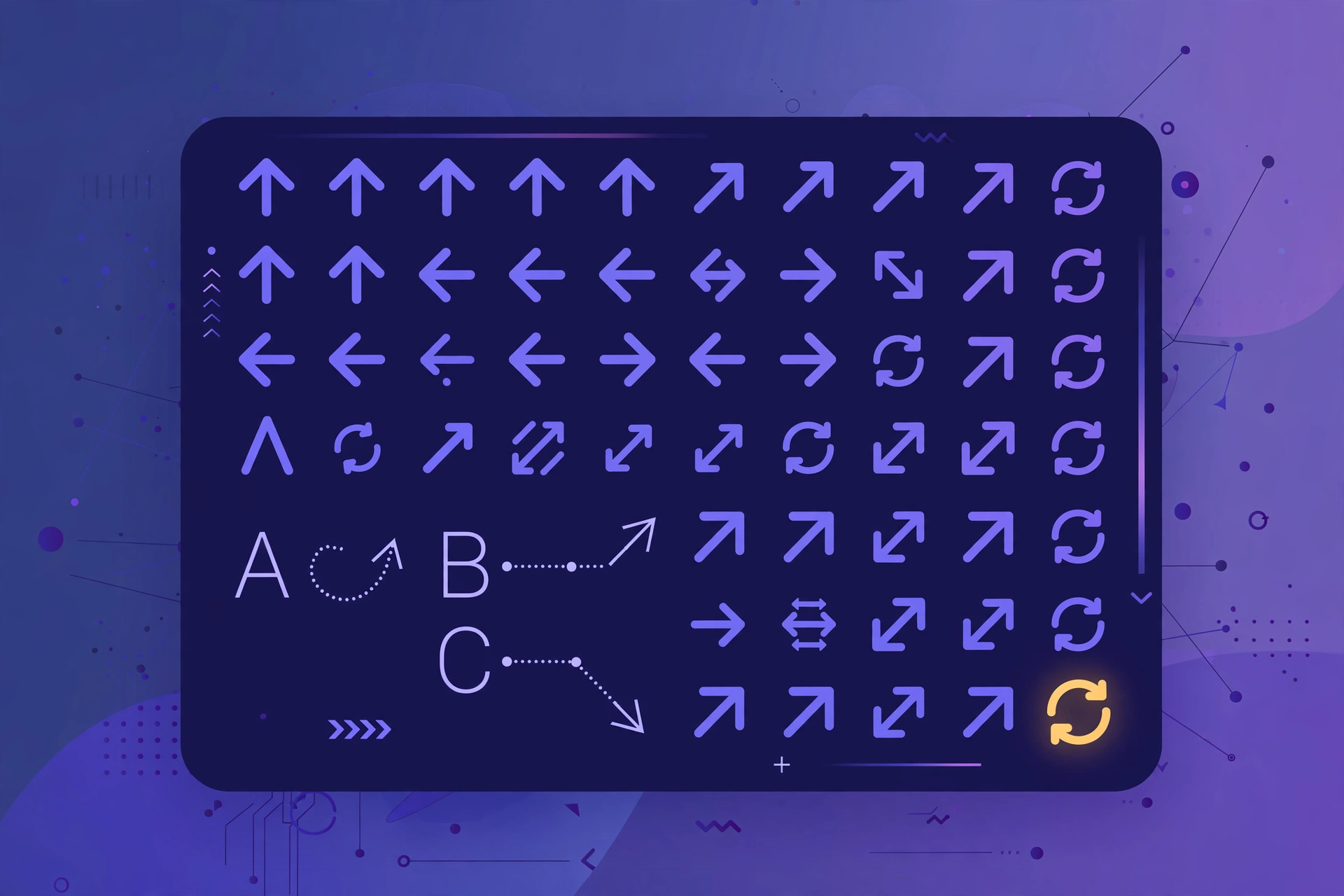
Wingdings 3 is the third font in Microsoft’s Wingdings family, and it is almost entirely made of arrows — arrows pointing in every direction, inside circles, squares, and plain. If you have ever seen a document full of arrow symbols where text should be, it was probably written in Wingdings 3.
How to Use the Wingdings 3 Translator
- Type or paste text into the box.
- Choose encode (Text → ✦) or decode (✦ → Text) with the ⇄ button.
- Copy the result with one click.
Wingdings 3 Translator Tips for Perfect Arrows
Our Wingdings 3 translator delivers the most accurate results when you match the font correctly. If pasted arrows decode into gibberish, the original text was likely typed in classic Wingdings or Wingdings 2 — each Microsoft symbol font assigns completely different glyphs to the same letters, so always use the translator built for the right font. For the cleanest output, copy symbols directly from the source document, wiki, or puzzle instead of retyping them; Wingdings 3 contains dozens of near-identical arrows (← → ↑ ↓ ↖ ↗ ↙ ↘ and their circled or boxed variants) that are easy to confuse at a glance.
Beyond decoding, the Wingdings 3 translator is a handy design shortcut. Encode any word to generate instant arrow icons for flowcharts, diagrams, presentations, timelines, or game maps — then copy the Unicode arrows into Word, Google Docs, Discord, or your website. Because every Wingdings 3 arrow maps to a standard Unicode character, your graphics render consistently on phones, tablets, and computers without needing the original font installed. And like all our tools, this Wingdings 3 translator runs entirely in your browser: free forever, fully private with no uploads, and unlimited use on any device — no sign-up and no downloads required.
Frequently Asked Questions
What is Wingdings 3 used for?
Wingdings 3 is an arrow-symbol font. This translator encodes text into its arrows and decodes arrow symbols back into readable English.
Is Wingdings 3 different from Wingdings and Wingdings 2?
Yes — all three are separate Microsoft fonts with different glyph assignments. Use the matching translator for accurate results.
Why do I see arrows instead of text?
The text was typed in the Wingdings 3 font. Paste the symbols into the decoder above to reveal the original message.
Is it free?
Yes — free, no sign-up, no limits, and everything runs privately in your browser.